
Use Koma's User Interface
Load a sequence, phantom, and scanner; simulate, reconstruct, and export the results. The notebook and Julia script guides follow the same brain/EPI example.
Basic Workflow
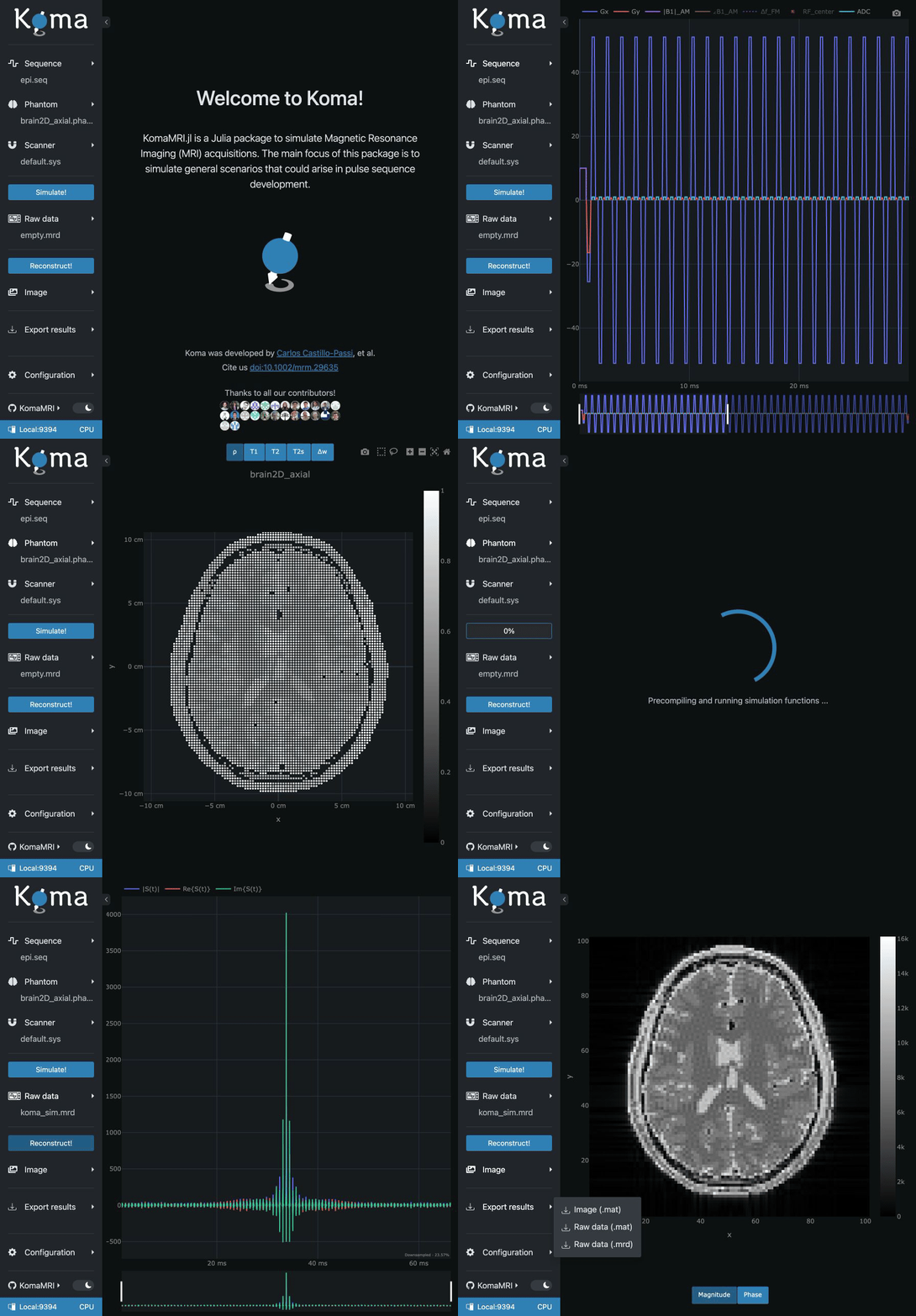
Open the interface from Julia:
julia> using KomaMRI

julia> KomaUI()
Dark mode is the default. Use the switch at the bottom of the sidebar to switch themes, or start with KomaUI(darkmode=false) for light mode. After installing the koma app (Julia 1.12+), the same interface can be opened from the terminal:
komaUse the sidebar arrow to collapse or expand it.
Loading Simulation Inputs
Same inputs: Julia scripts.
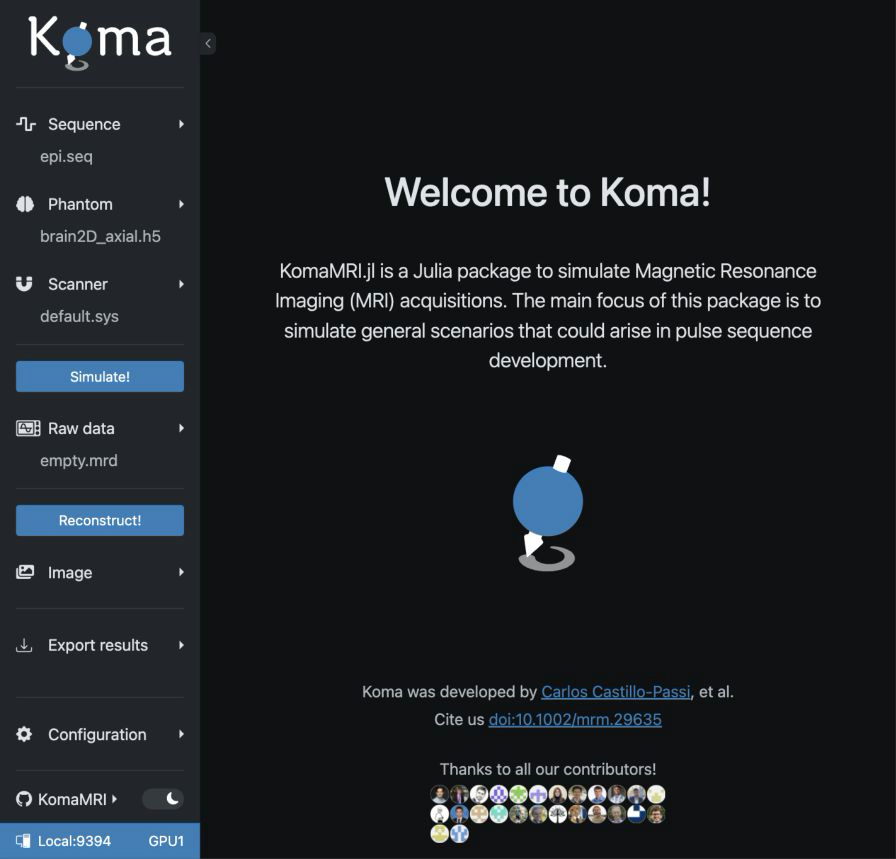
The interface starts with a scanner, a 2D brain phantom, and an EPI sequence. Use each menu's file picker to replace an input, or its reload button to reread it.
Scanner
Use the Scanner file picker to load a .sys file; the reload button reads it again. See the scanner file reference for creating files and supported models.
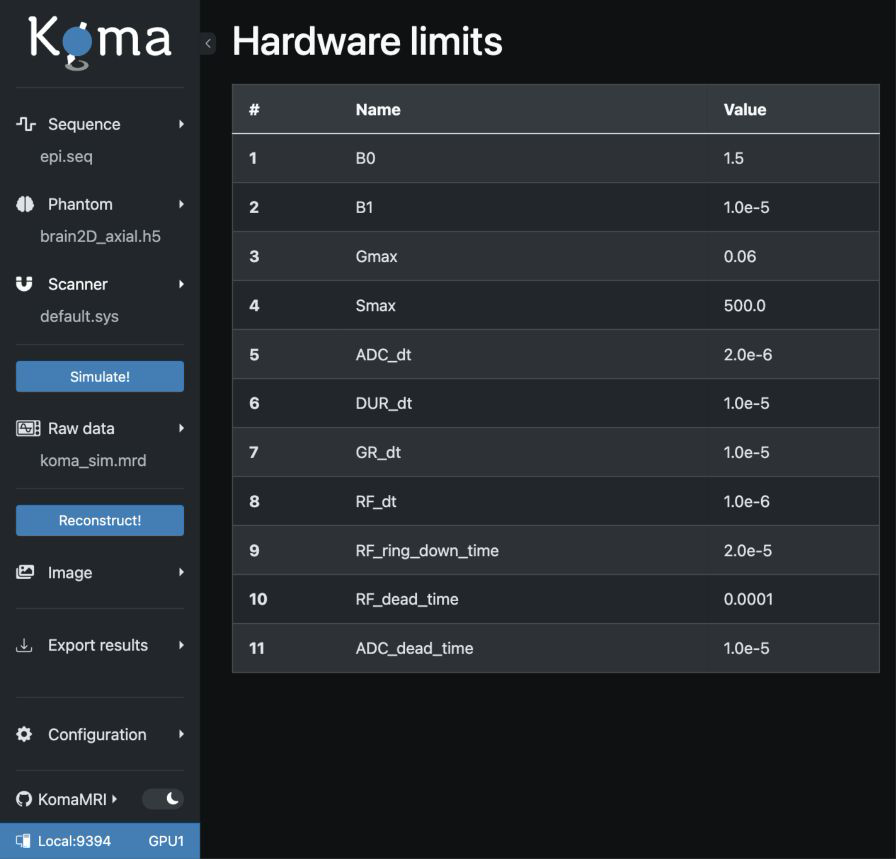
Select View limits for hardware limits or View coil sensitivities for receive maps. View gradients and View B₁ maps are not yet available and are disabled.
Phantom
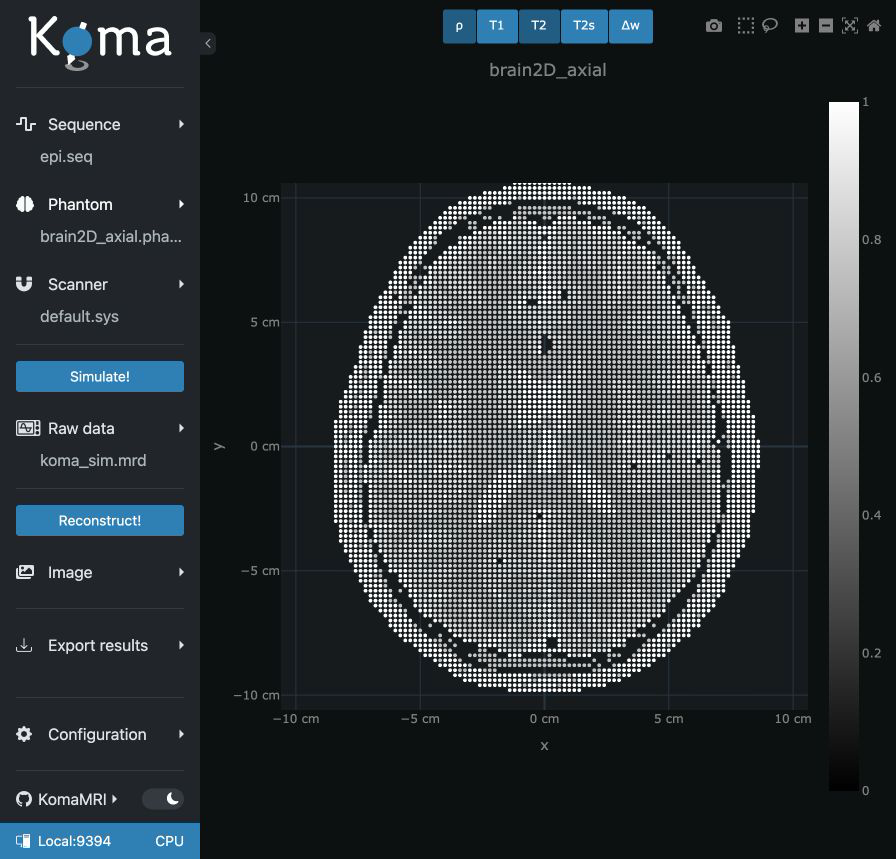
Phantom → View phantom:
Sequence
Select View definitions to inspect the loaded sequence's DEF dictionary, including any FOV, Nx, Ny, and Nz values.
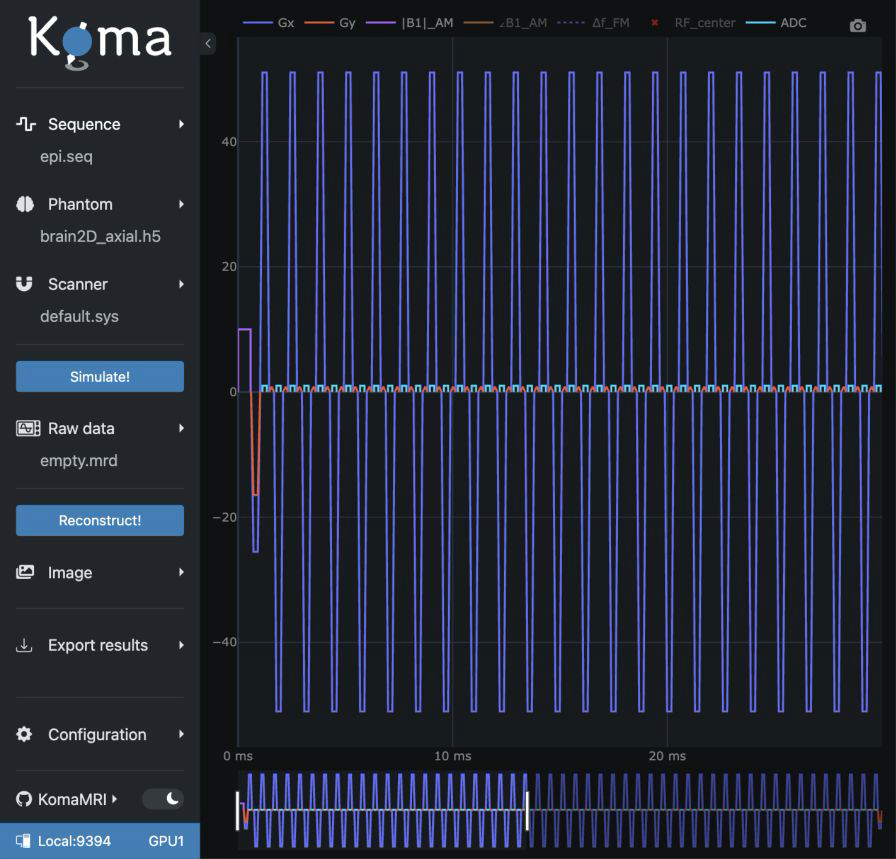
Sequence → View sequence:
Sequence → View k-space:
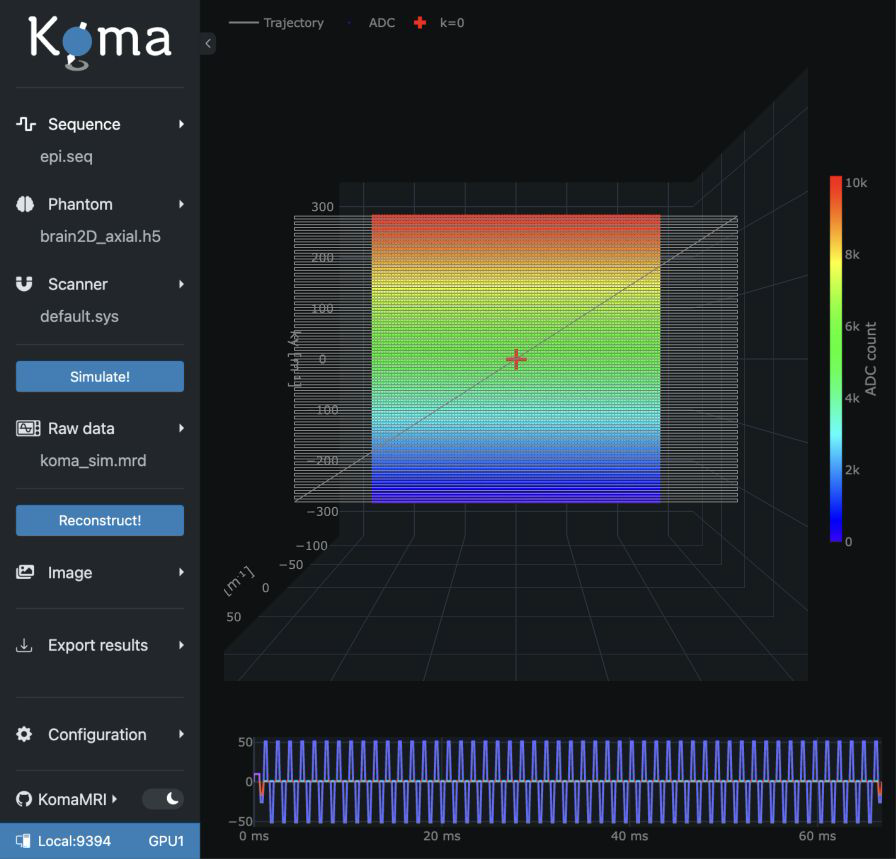
Zoom the compact sequence panel below k-space to select a time window. The trajectory follows that window while preserving the 3D camera; double-click the sequence panel to reset the selection.
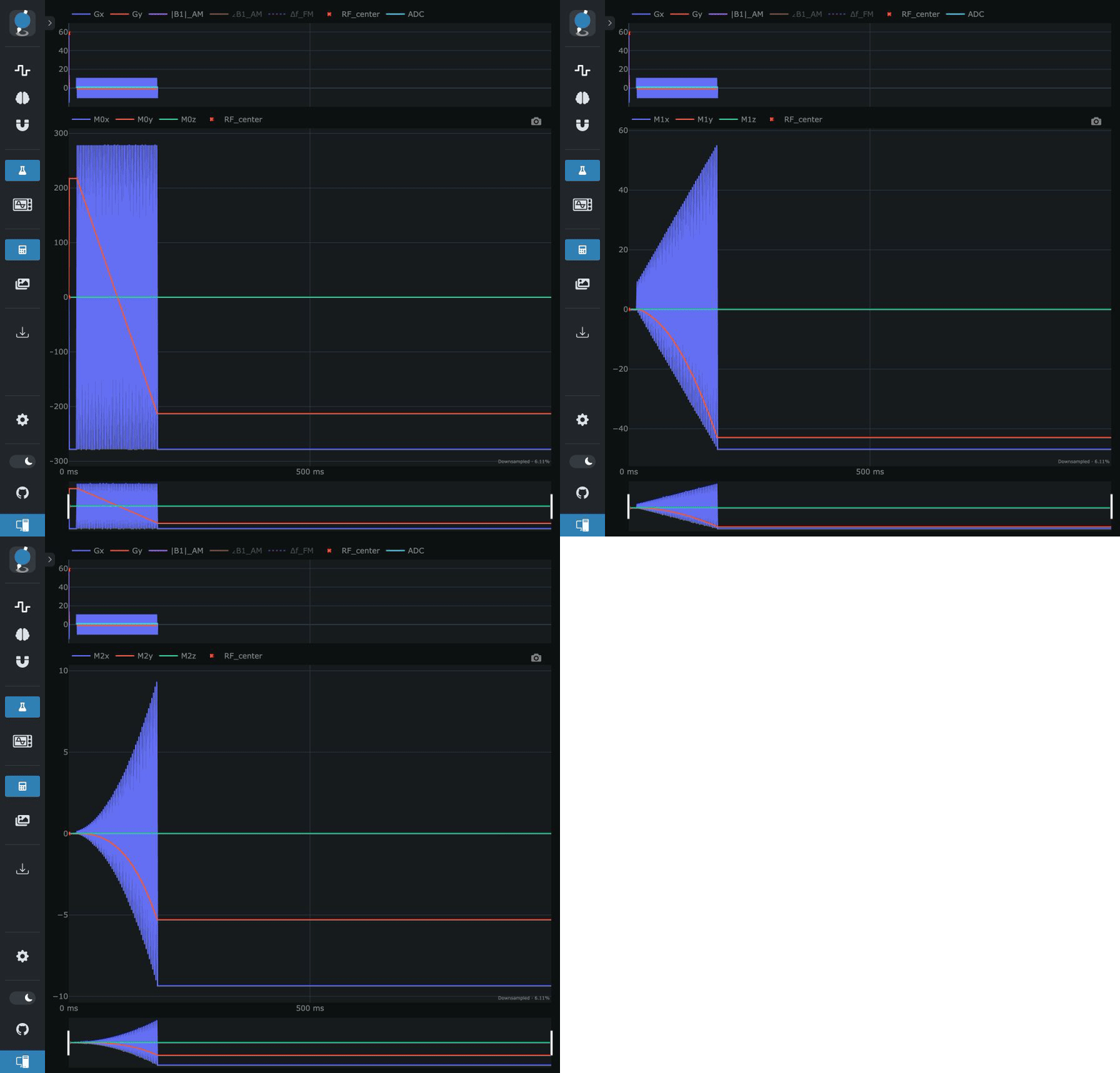
Sequence → View moments:
Running Simulation
Same simulation: Julia scripts.
Simulation Parameters
Open Configuration → View configuration to see simulation [sim_params] followed by reconstruction [recon_params]. Select the .toml (Koma) file picker in the same menu to load both from one file; omitted settings remain unchanged. See the configuration example.
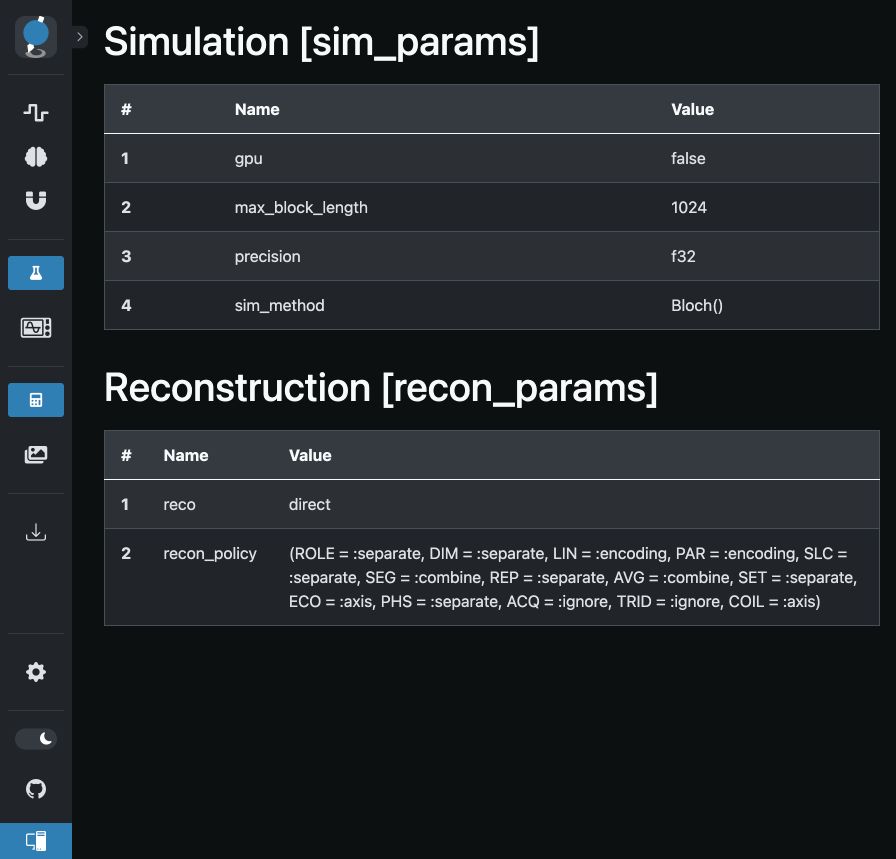
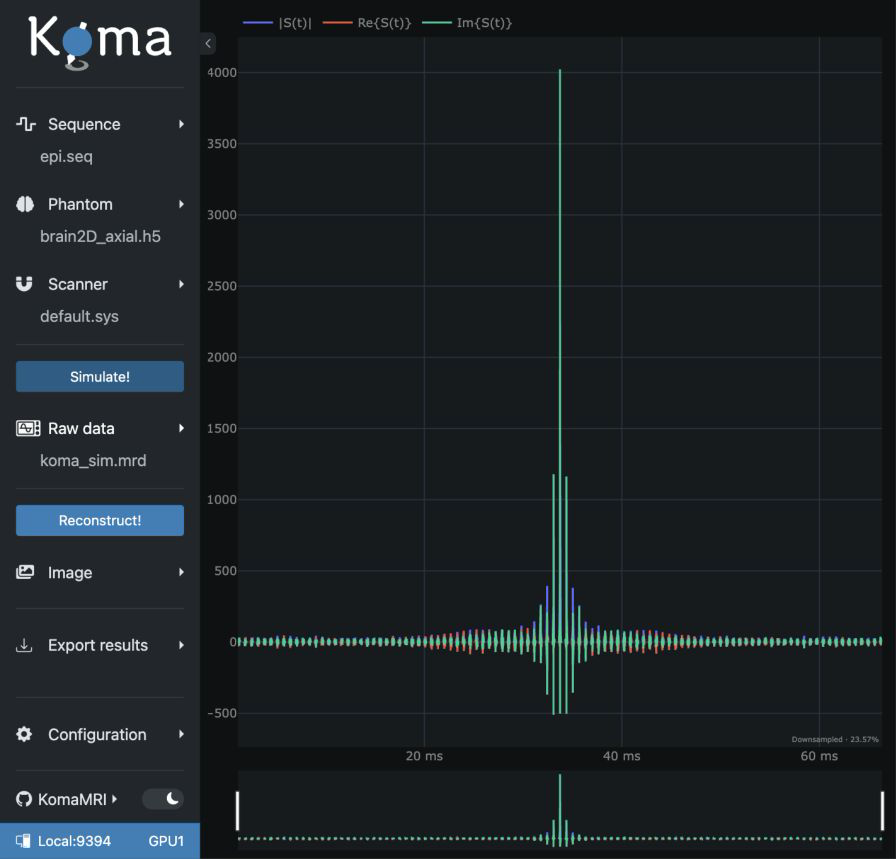
Visualization of the Raw Signal
Press Simulate!. The raw signal appears automatically. Reopen it with Raw data → View raw data.
Reconstructing Image using MRIReco
Same reconstruction: Julia scripts.
Reconstruction Parameters
Reconstruction [recon_params] appears below simulation parameters on the Configuration → View configuration page.
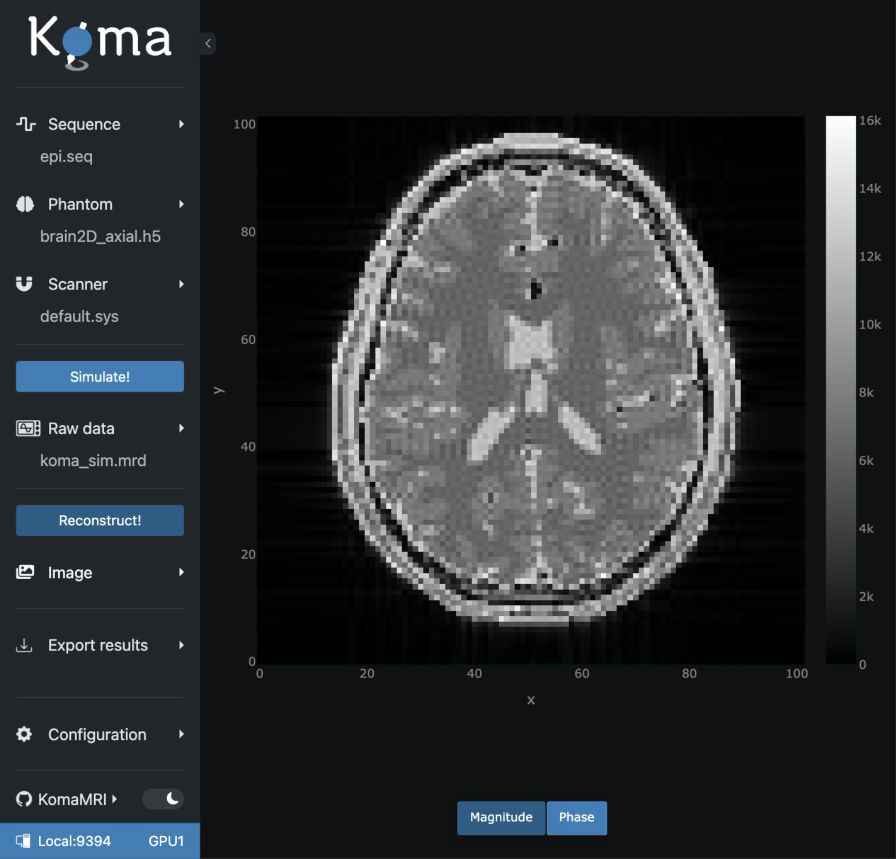
Visualization of the Image
Press Reconstruct!. The image appears automatically. Reopen it with Image → View image.
PAR volumes and compatible SLC stacks open linked image-coordinate slice views. Acquisition-label and coil selectors retain the slice positions. Middle-drag to adjust window width/level in images or log-k-space; double-click resets it.
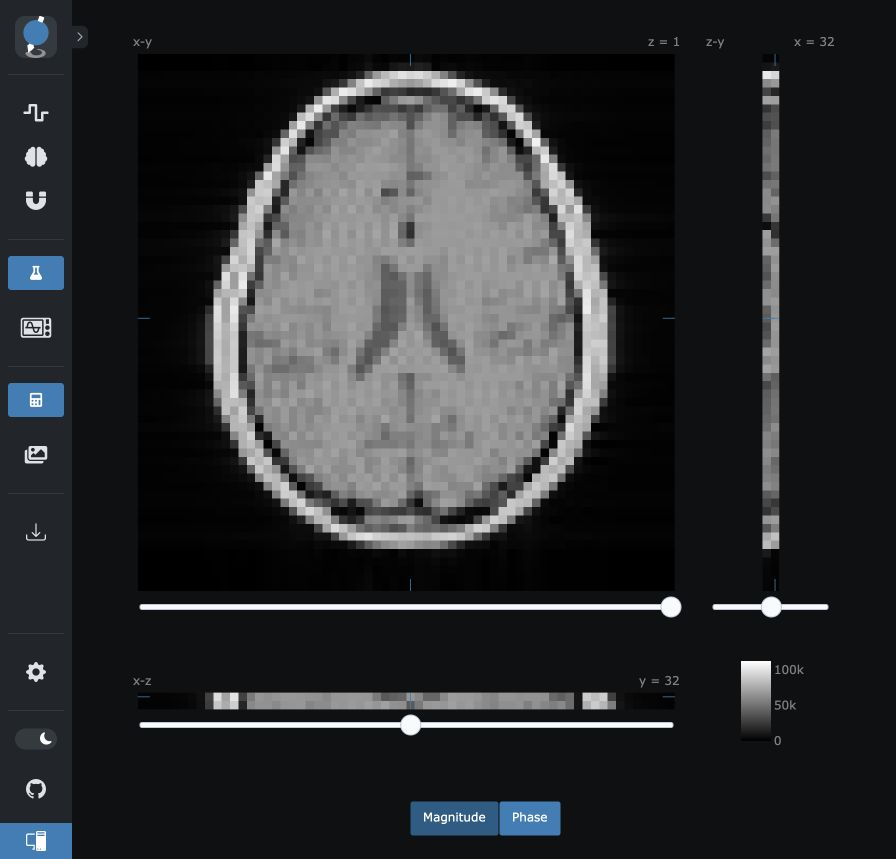
See Cartesian multi-slice reconstruction for a simulated SLC acquisition and its interactive reconstructed slice stack.
Exporting results
Same outputs: Julia scripts.
Open Export results to download the image (.mat) or raw data (.mat or .mrd). Electron opens a folder picker. Supported browsers open a Save As picker; other browsers download the file using their download settings.
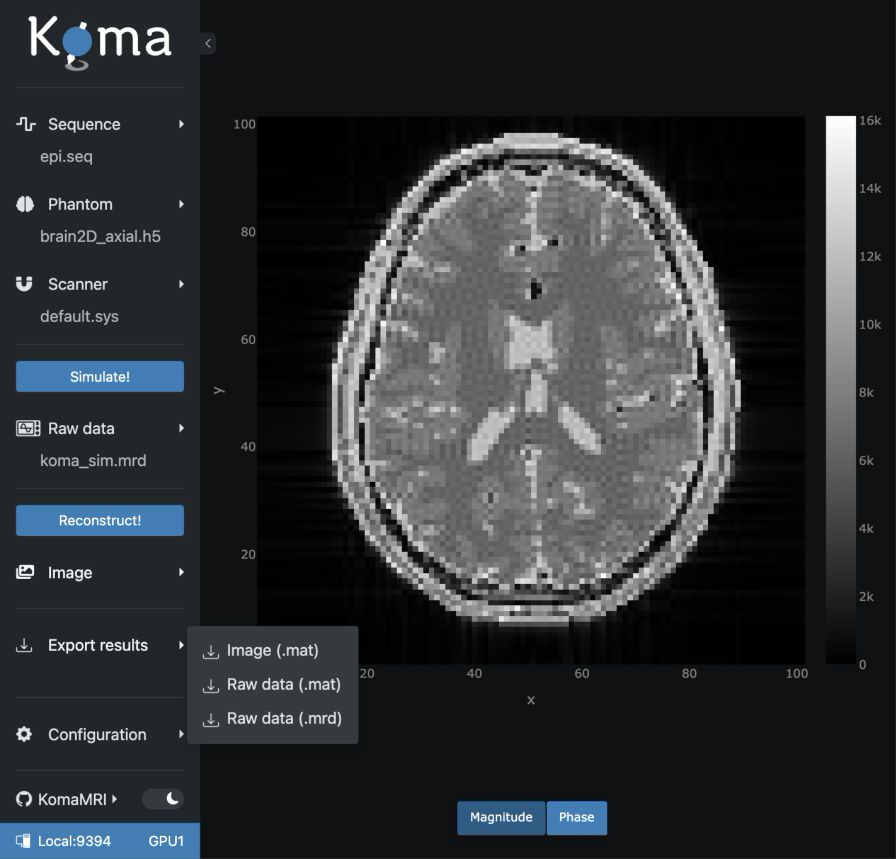
See the MATLAB export reference for filenames, struct fields, and MATLAB examples.
Exploring other inputs
After completing the brain/EPI workflow, try the same sphere and spiral examples as in the script and notebook guides.
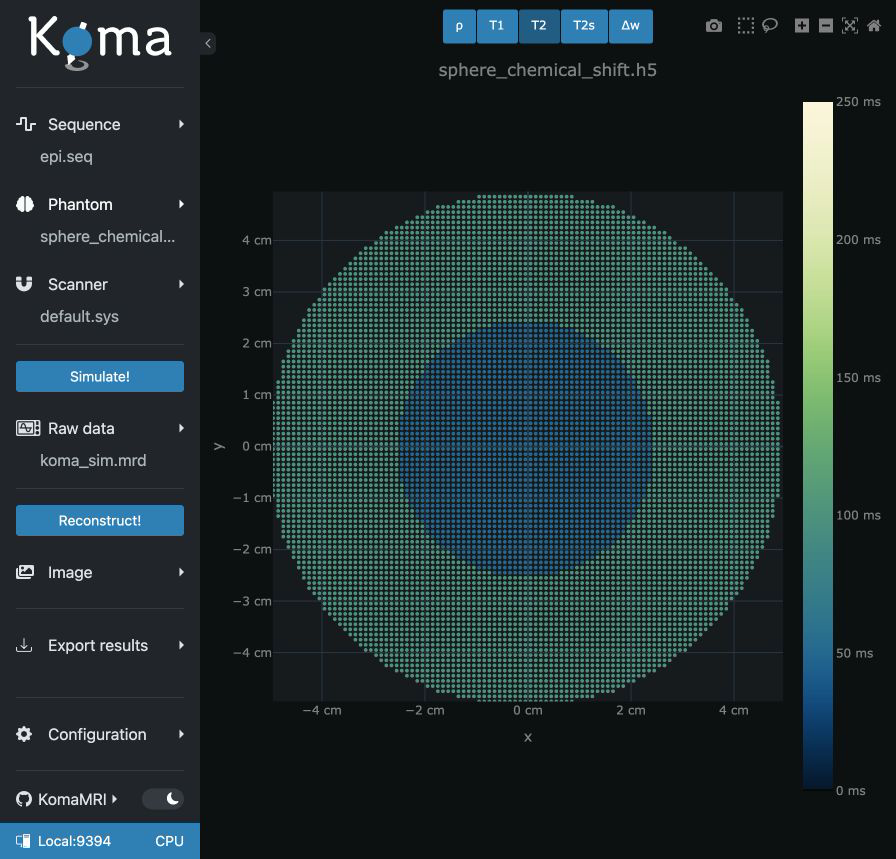
Load examples/2.phantoms/sphere_chemical_shift.h5 in the Phantom file picker and select T2:
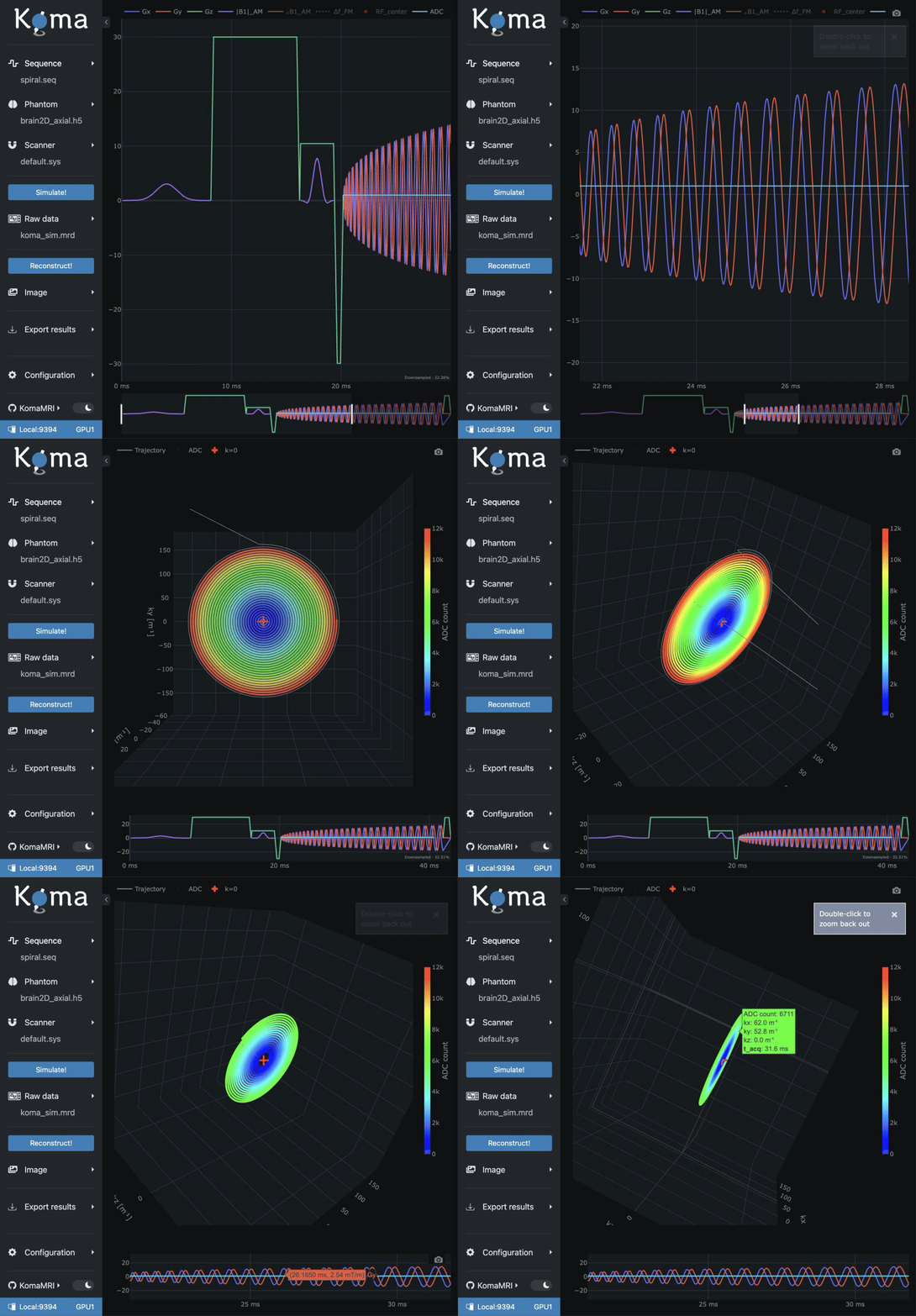
Load examples/1.sequences/spiral.seq in the Sequence file picker:
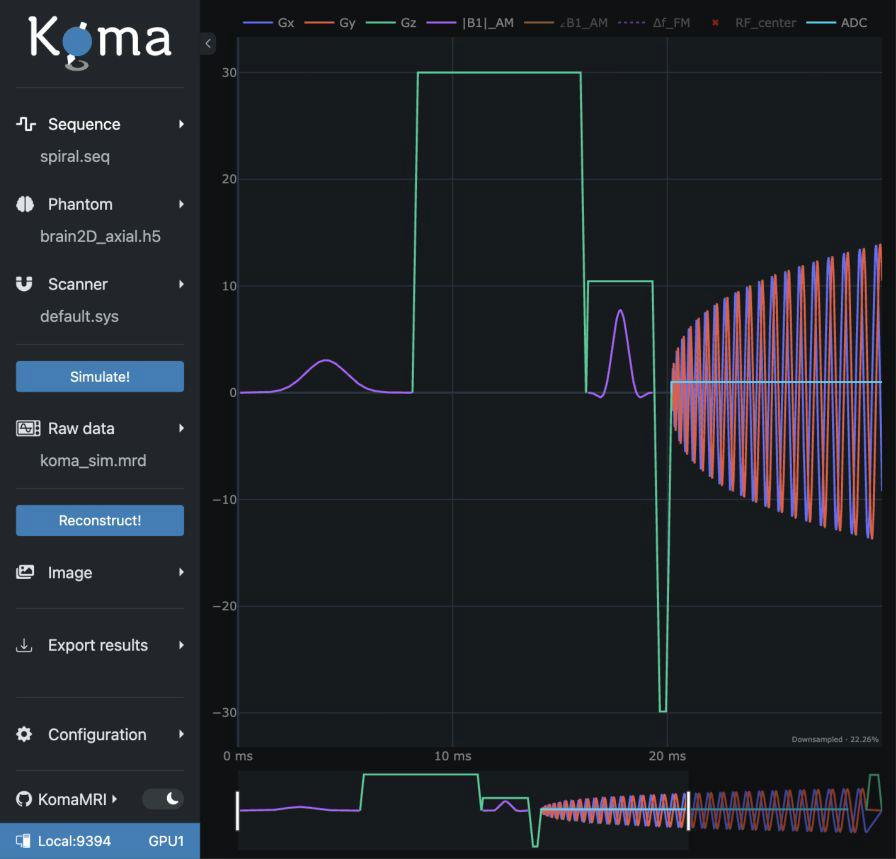
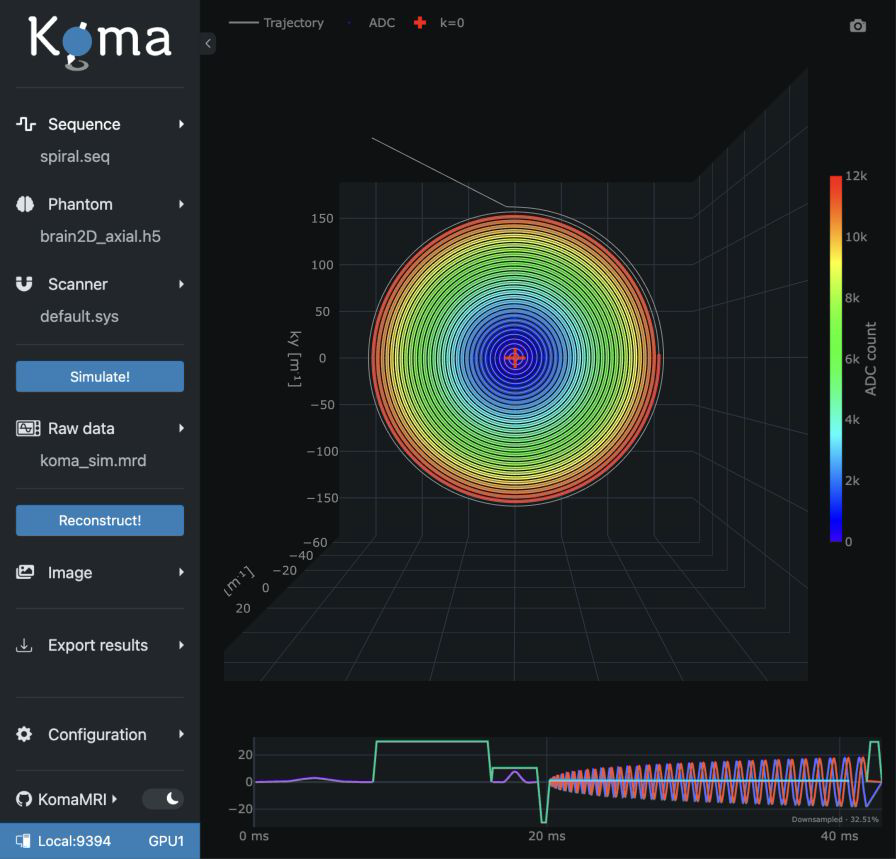
Interact with the plots:
Include Nx, Ny, Nz, and FOV definitions when reconstructing a loaded sequence; missing dimensions produce an inference warning.
Additional phantom views
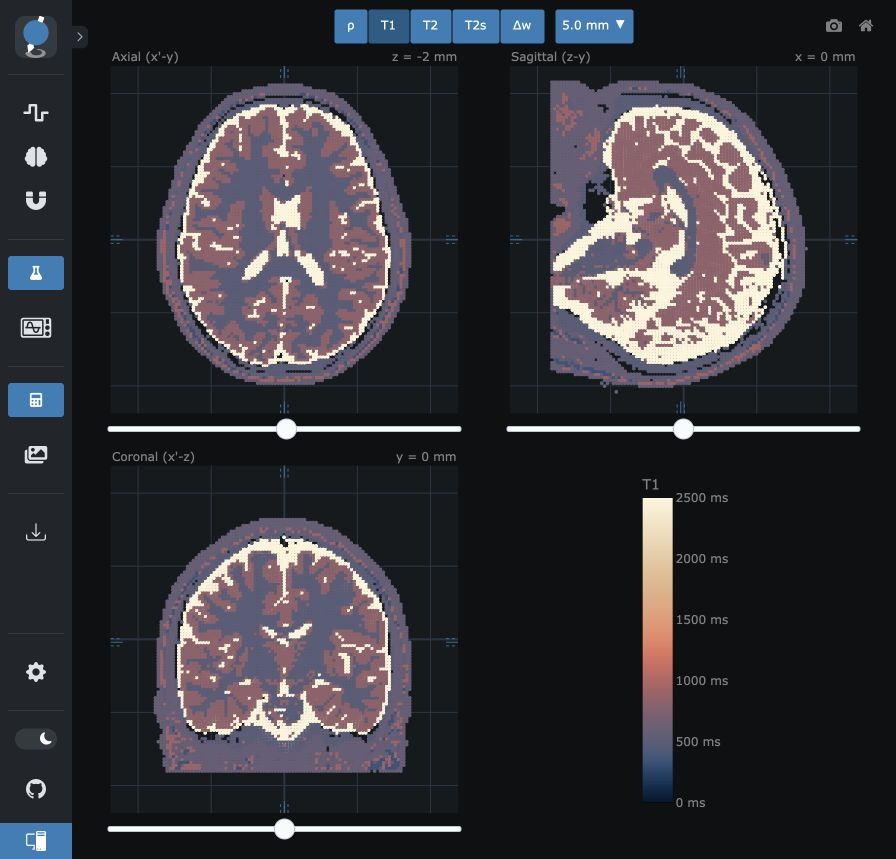
View phantom slices opens three linked slab views. Scroll or drag each slice slider to change its position; the thickness selector and motion controls are shared.
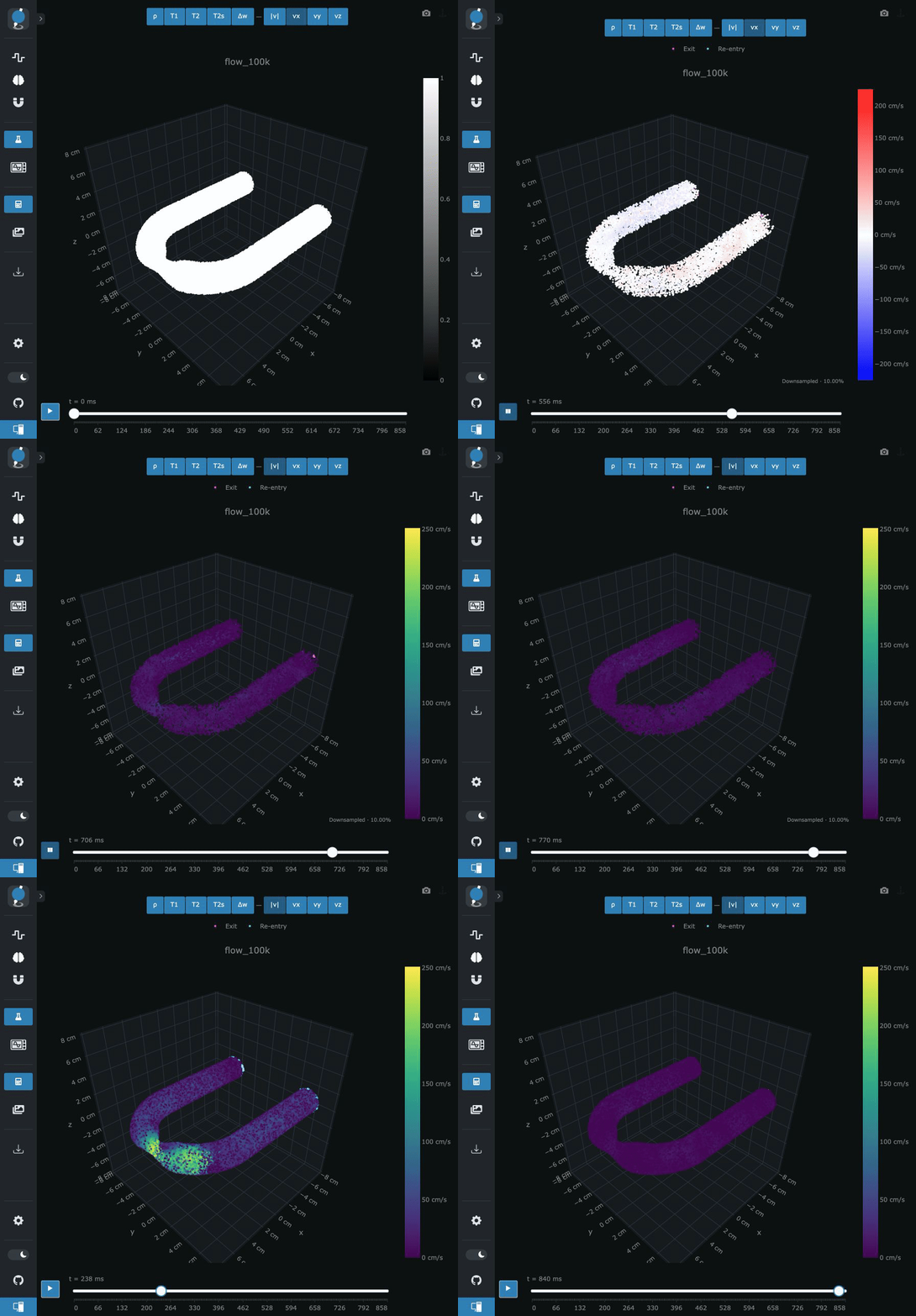
For phantoms with Flow motion:
Backend and device selection
Click the host badge at the bottom of the sidebar to choose the CPU or a GPU for the next simulation. Hover to see the selected device.
GPU choices appear only when a functional backend is loaded before KomaUI(): using CUDA for NVIDIA, using Metal for Apple, or using AMDGPU for AMD. using oneAPI supports Intel experimentally. Otherwise, CPU is used.

Browser-based KomaUI (easier for AI agents)
In a local Julia session:
using KomaMRI
# using CUDA    # NVIDIA GPU
# using Metal   # Apple GPU
# using AMDGPU  # AMD GPU
# using oneAPI  # Intel GPU (experimental)
KomaUI(; browser=true)
Open the URL printed by KomaUI in your browser.
Running on a server
Start KomaUI on the server. Forward its printed port from your local computer:
ssh -N -L 9384:127.0.0.1:9384 user@serverKeep the tunnel running and open http://localhost:9384 locally. Replace 9384 and user@server with your port and SSH address.
Controlling the UI from Julia (easier for AI agents)
Load inputs, simulate and reconstruct, then save outputs:
w = KomaUI(; return_window=true)

# Load inputs without a dialog
load_file!(w, :sequence, "example.seq")   # Or: w.seq[] = seq
load_file!(w, :phantom, "brain.phantom")  # Or: w.obj[] = obj
load_file!(w, :scanner, "scanner.sys")    # Or: w.sys[] = sys
load_file!(w, :configuration, "settings.toml")  # Optional parameter overrides

# Simulate and reconstruct
w.sim_params[] = merge(w.sim_params[], Dict("precision" => "f32"))
w.rec_params[] = merge(w.rec_params[], Dict(
    :reco => "standard", :iterations => 10, :recon_policy => (COIL=:rss,)))
raw = simulate!(w)
image = reconstruct!(w)

# Save outputs without a dialog
result = export_results(w, :raw_data_mrd; path="/data/exports/raw.mrd")
export_results(w, :raw_data_mat; path="/data/exports/raw.mat")
export_results(w, :image_mat; path="/data/exports/image.mat")

# Other menu actions
click!(w, :view_kspace)
click!(w, :view_coil_sensitivities)
click!(w, :reload_sequence)

# Backend-related actions
get_devices()
click!(w, :select_device; gpu=false)                # CPU
click!(w, :select_device; gpu=true, id=device_id)   # An available GPU
Export paths refer to the machine running Julia; the parent directory must exist. result.path is the saved file and result.url is its download URL in browser mode (nothing in Electron). Retrieve remote downloads through the SSH tunnel.
For GPU simulation, first import the backend for your hardware: CUDA (NVIDIA), Metal (Apple), AMDGPU (AMD), or oneAPI (Intel, experimental). See the full action list (or ?click! in Julia) and window data reference.
Use a GPU ID from get_devices(). Omit id to select the backend's current GPU. An unavailable GPU throws and leaves the settings unchanged.
Long-running operations
Calls block until complete and throw on failure. To inspect progress during a simulation, keep its task:
task = @async simulate!(w)
ui_status(w)                  # Simulation status, progress, elapsed_seconds, eta_seconds
raw = fetch(task)             # Waits and returns the result, or throws
Elapsed time and ETA are simulation-only; reconstruction reports nothing for both. ETA is a block-based estimate and can fluctuate during setup or compilation.
While an operation runs, only theme/sidebar toggles remain available. Assign observables directly only when idle. fetch(task) waits for the operation; wait(w) waits for the UI to close.
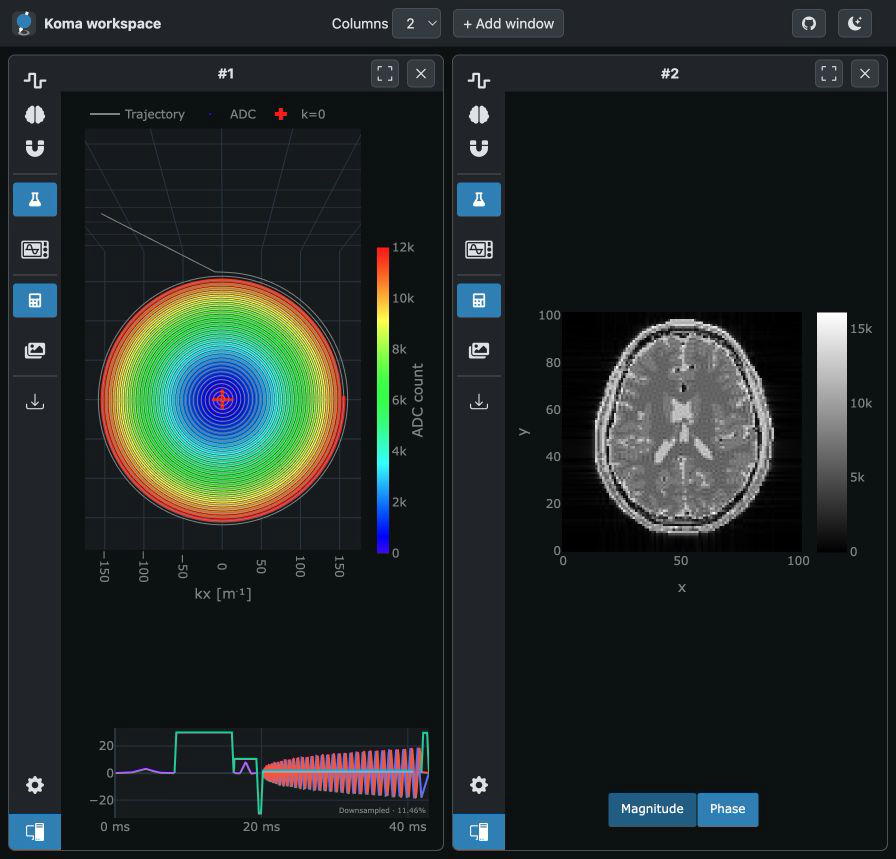
KomaWorkspace
KomaWorkspace shows independent KomaUI windows side by side in one browser, so you can compare sequences or simulation results:
w1 = KomaUI(; show_window=false, return_window=true)
w2 = KomaUI(; show_window=false, return_window=true)
workspace = KomaWorkspace([w1, w2])
Use Add window to create another tile, or add_window!(workspace; sim=Dict("gpu" => false)) from Julia. Each tile has its own inputs, outputs, device, and progress. Expand a tile to focus it without reconnecting. Numbers appear only in workspace headers. KomaWorkspace([w]) can also adopt an existing browser window, preserving its data and server port. For SSH, forward the workspace's single printed port.